
What is my screen resolution?
Your screen resolution is the number of pixels your display can show horizontally and vertically. Higher resolutions can present more detail and allow more content to fit on the screen. If you want more detailed information about your device, visit whatismydevice.net.
What is viewport size?
The viewport size is the area your browser uses to display a webpage. On mobile devices it can be smaller than the full screen because of browser UI and scaling.
Display settings: where do I find display settings on Windows?
If you’re looking for display settings (sometimes searched as “settings display” or “display setting”), you can open them quickly on Windows 11 or Windows 10:
Windows 11
- Right-click the desktop and choose Display settings.
- Or open Start → Settings → System → Display.
Windows 10
- Right-click the desktop and choose Display settings.
- Or open Start → Settings → System → Display.
Once you’re in Display settings, you can adjust brightness, scaling, resolution, orientation, and multiple displays.
What are common screen resolutions?
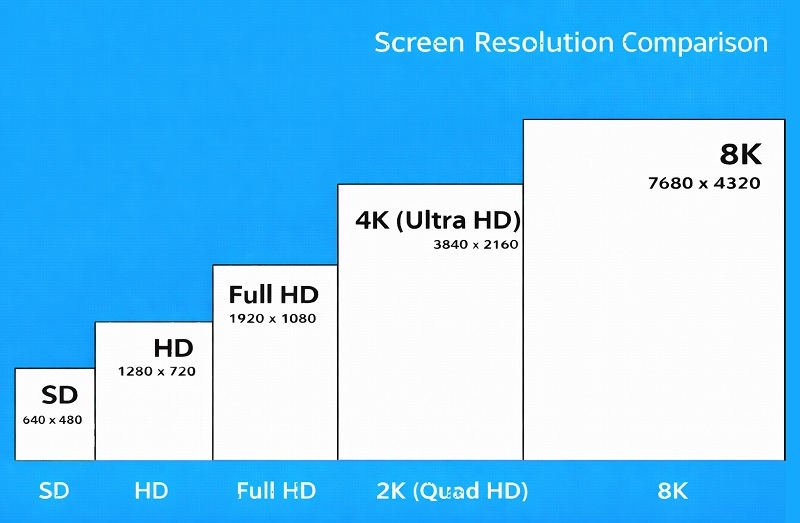
Common examples include HD (1280 × 720), Full HD (1920 × 1080), 2K / Quad HD (2560 × 1440), and 4K (3840 × 2160). Higher resolutions provide sharper images and more workspace, especially on larger displays.
Why does screen resolution matter?
Screen resolution affects how websites, images, and videos appear. Layouts, text size, and scaling may change depending on your resolution and the type of device you are using.
Is screen resolution the same as screen size?
No. Resolution is pixel dimensions (like 1920 × 1080), while screen size is the physical diagonal measured in inches. To estimate inches/cm, use the calibration tool above.
Brightness: how do I adjust display brightness settings easily on Windows?
People often search for brightness, “brightness level”, or “adjust display brightness settings easily windows”. Here are the quickest methods:
Quick brightness method (Windows 11)
- Press Win + A to open Quick Settings.
- Use the Brightness slider.
Quick brightness method (Windows 10)
- Click the Action Center icon (right side of taskbar).
- Use the brightness slider (or brightness button on some devices).
Full settings path
- Open Settings.
- Go to System → Display.
- Adjust Brightness (if supported by your display).
If the brightness slider is missing, it may be because you’re using an external monitor (many external monitors require brightness to be changed using the monitor’s physical buttons/OSD).
Adjusting display scaling settings (Windows)
If text and icons look too small or too large, you likely need display scaling. Many users search “adjusting display scaling settings” when apps look blurry or UI is the wrong size.
How to change scaling (Windows 11 / 10)
- Open Settings → System → Display.
- Find Scale (or “Scale and layout”).
- Select a recommended value (often 100%, 125%, 150%).
Tips if scaling makes apps blurry
- Try the recommended scaling value first.
- Sign out and sign back in after changing scaling (some apps refresh then).
- For one app only: right-click the app → Properties → Compatibility → change high DPI settings.
Help with color management in Windows
If colors look washed out, too warm, too blue, or inconsistent between apps, you may need color management. People often search “help with color management in windows” when using photo editing, design, or multiple monitors.
Basic steps: Night light / color temperature
- Open Settings → System → Display.
- Find Night light and toggle it off/on to test.
- Adjust the strength/schedule if you want warmer colors at night.
Advanced: Color profile (ICC) using Color Management
- Open the Start menu and search for Color Management.
- Go to the Devices tab and select your display.
- Check Use my settings for this device.
- Add or set the recommended ICC profile (often provided by the monitor manufacturer).
For professional color work, monitor calibration hardware is best — but the steps above solve many common display color problems.